
|
Uber Ride Integration
Uber Ride integration is sold separately. Contact your TSD Sales Representative at sales@tsdweb.com for more information.
ATMS GEN2.0 offers integrated ride share with Uber for Business to provide rides from your location. Keep all your transportation needs in one place, boost your customer service, increase profitability, minimize fleet costs, and keep your service lane flowing.
With this integration, you can:
- Request an Uber ride for your customer in lieu of a courtesy vehicle (e.g., if you're running short on fleet during peak periods and don't want customers to wait).
- Request an Uber ride for your own employees (e.g., to return to your location after delivering a customer vehicle without needing a chase vehicle).
- Monitor rides on the Uber tab of your 'Home' screen, including viewing details and tracking, if available.
- Request support on behalf of your rider.
- Report on Uber trips to assess how the integration is benefiting your business.
Set Up Uber Ride Integration
- Contact TSD to get started. Initial configuration of the integration with Uber for Business must be completed by TSD Support. Contact your TSD Sales Representative at sales@tsdweb.com for more information.
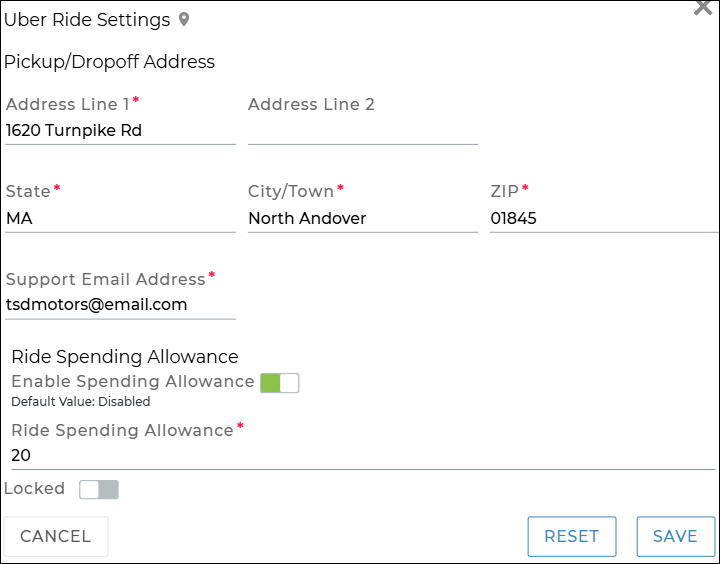
- Check your Uber Ride settings. Use the Uber Ride Settings management setting to manage your location's pickup/dropoff address, email, and, if you choose, limit ride availability by price:
- Pickup/Dropoff Address: The address of the location to be used for all new ride requests, going forward. By default, this is the location's address, but can be changed.
- Support Email Address: Enter a single email address (an individual or group email) to be CC’d when rider support requests are sent to Uber for Business.
- (Optional.) Ride Spending Allowance, to limit ride availability by price: Toggle on Enable Spending Allowance, then enter a Ride Spending Allowance amount that determines which rides will be available when booking; no rides above the spending allowance will be shown. For example, if your allowance is $75.50, options that cost more than this will not be shown when booking rides.
- (Optional.) Allow Off-Site Addresses: Toggle on Allow Off-Site Address at Pick-Up and Drop-Off to offer rides between two off-site locations, such as from a customer’s home to their workplace or body shop. When turned off, rides are only allowed to or from the dealership.
- Check your employee role / permissions. The Modify Uber Ride Agreement permission is required to open, close, and edit an Uber Ride, or take any other action other than viewing the record. It is automatically turned on for High roles, by default. See "Roles & Permissions" for more information.
Hover to view the full-sized image.
Book a Ride
The Modify Uber Ride Agreement permission is required to open, close, and edit an Uber Ride, or take any other action other than viewing the record. It is automatically turned on for High roles, by default.
You can request an Uber ride from a customer record (e.g., in lieu of a courtesy vehicle) or from scratch.
 Book an Uber Ride
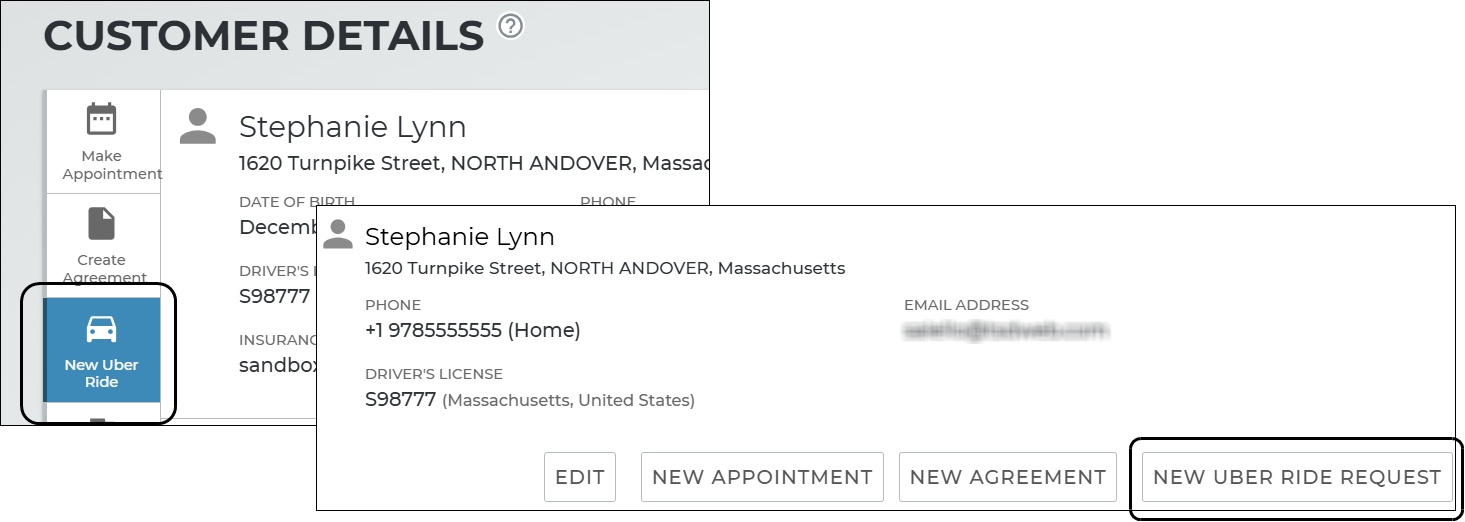
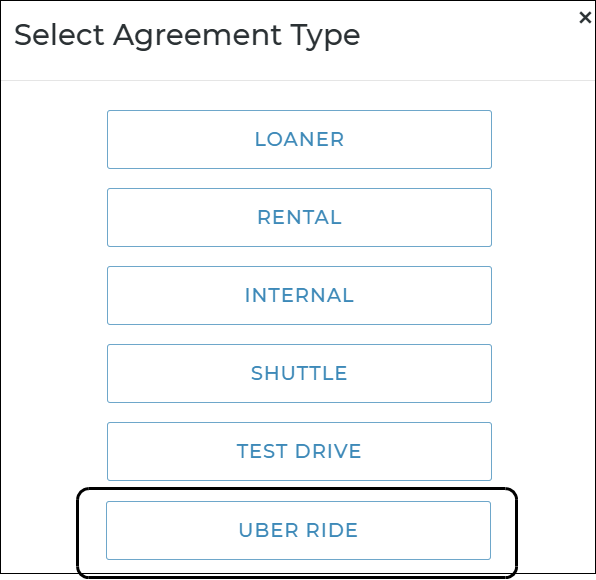
- Kick off the Uber Ride request from the customer record () or from scratch (
 > New Agreement > ). Read more:
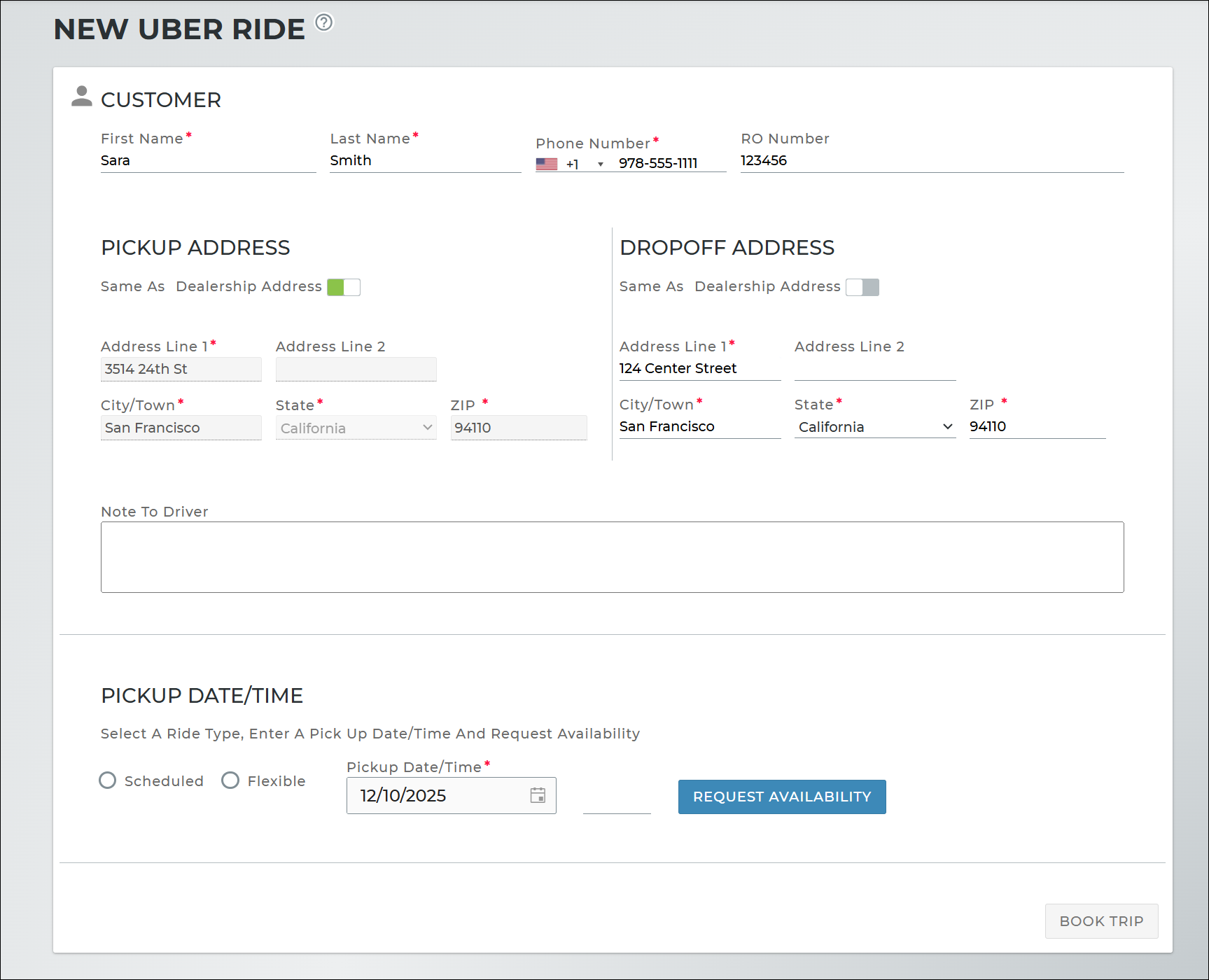
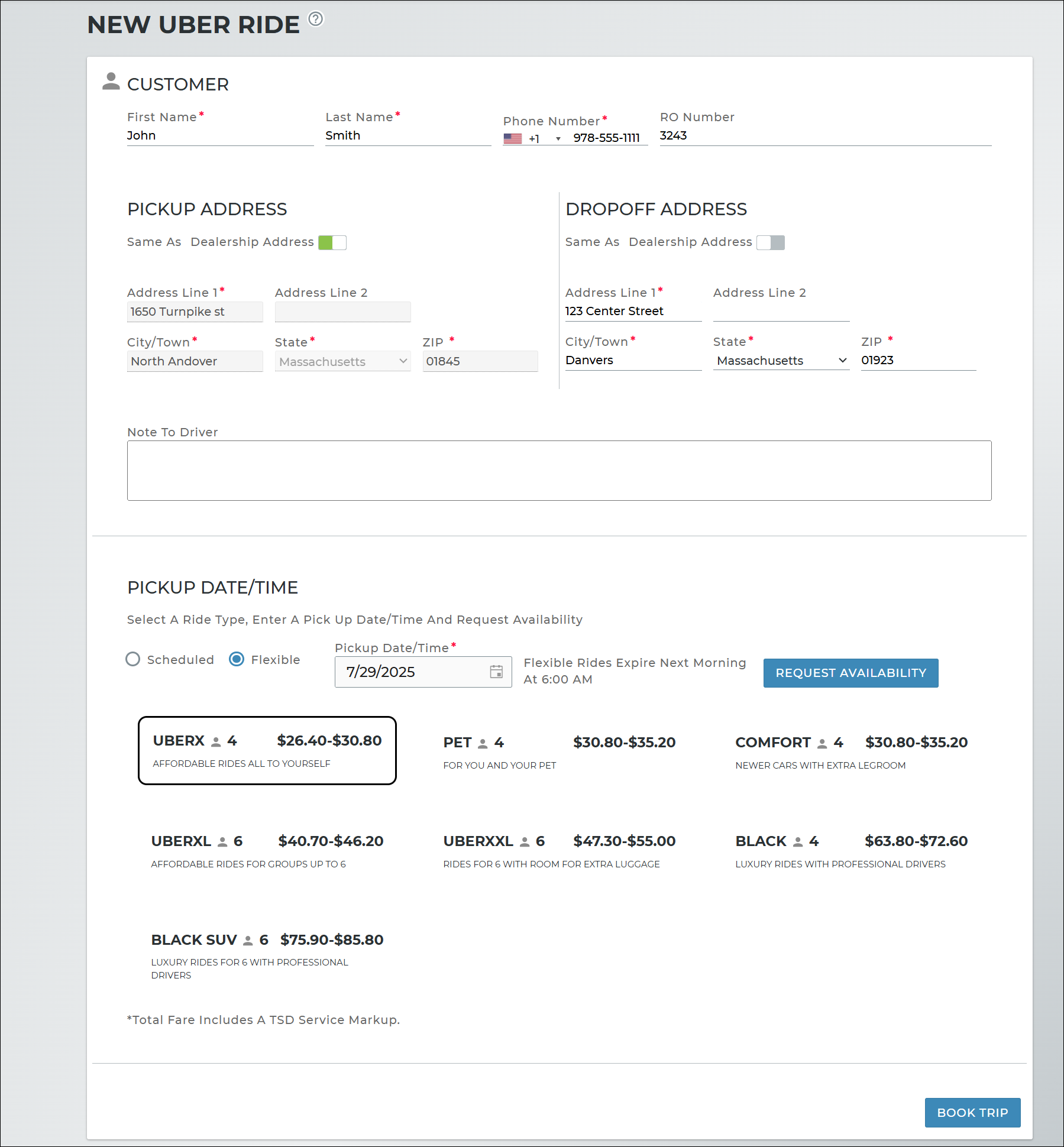
- Fill in the name, mobile phone number, and RO Number associated with the rider.
- Fill in the Pickup Address and Dropoff Address. To use your location for either address, turn on Dealership Address. You can also enter a note for the driver.
- Request ride availability and choose a ride by doing the following:
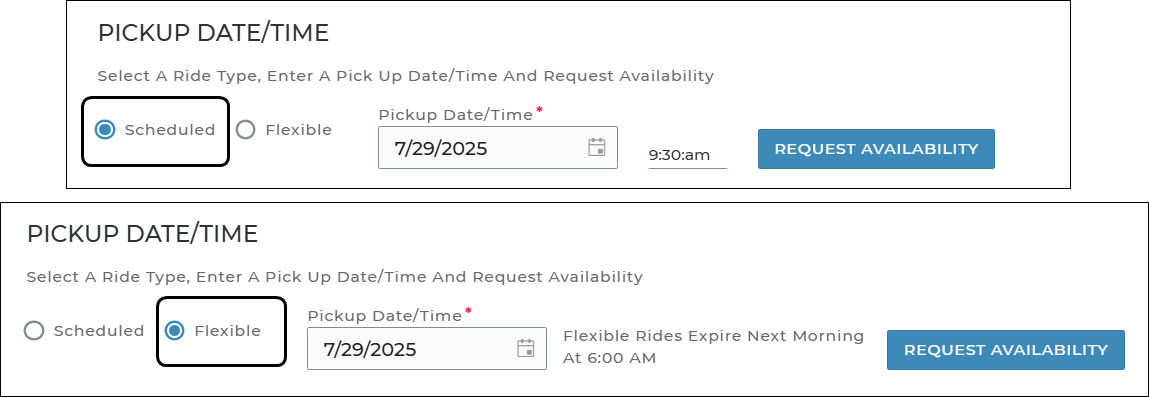
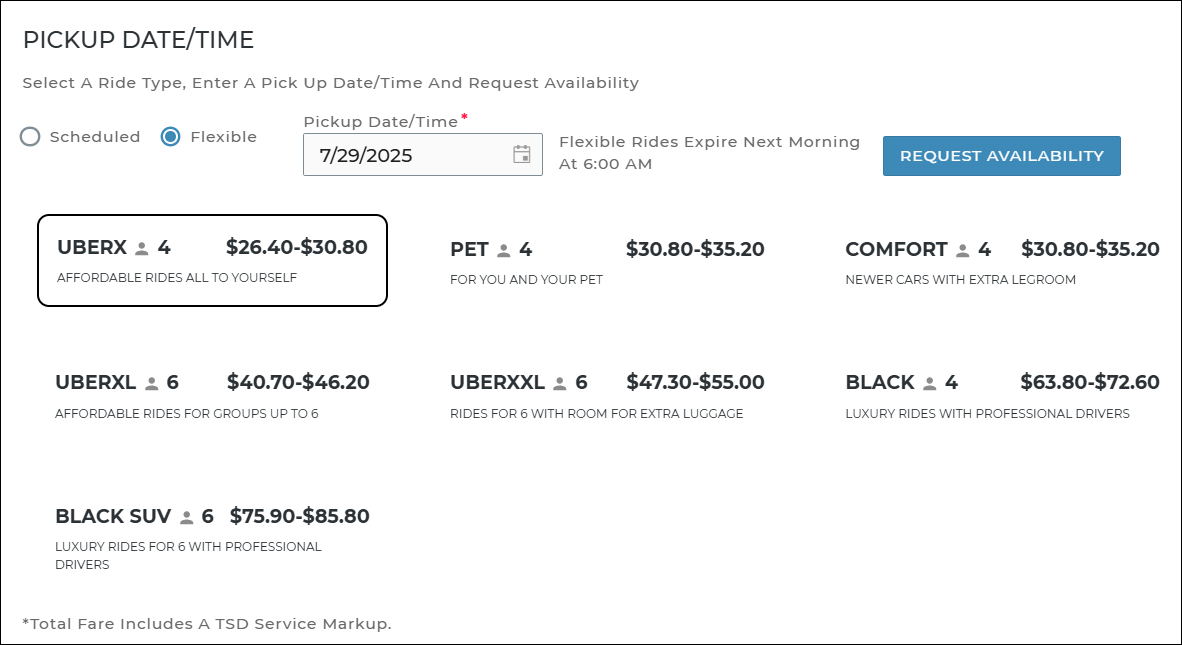
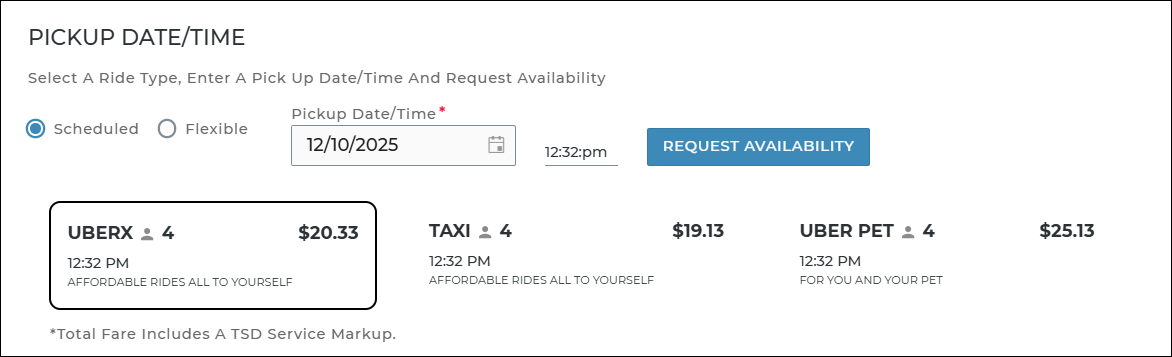
- Select a Ride Type: Scheduled, for ride at the selected Pickup Date/Time, or Flexible, for a ride any time on the selected Pickup Date; the customer will receive a text message from Uber to select a time. Flexible rides expire the next morning at 6:00AM.
- Click to view available rides and prices1 based on the entered pickup/dropoff addresses. (If you edit the addresses, you must request availability again.)
- Select a ride.
- Click . Wait a few seconds for the request to process. A brief Trip Booked Successfully message will be displayed when the trip is successfully booked.
Note: If off-site rides are allowed in your Uber Ride Settings, you can enter an off-site address for both pickup and dropoff (e.g., from a customer’s home to their workplace or body shop). If it is turned off, either the pickup or the dropoff address must be your dealership.
Hover to view the full-sized image.
Hover to view the full-sized image.
Flexible rides
Hover to view the full-sized image.
Scheduled rides
Hover to view the full-sized image.
Hover to view the full-sized image.
View / Edit an Uber Ride
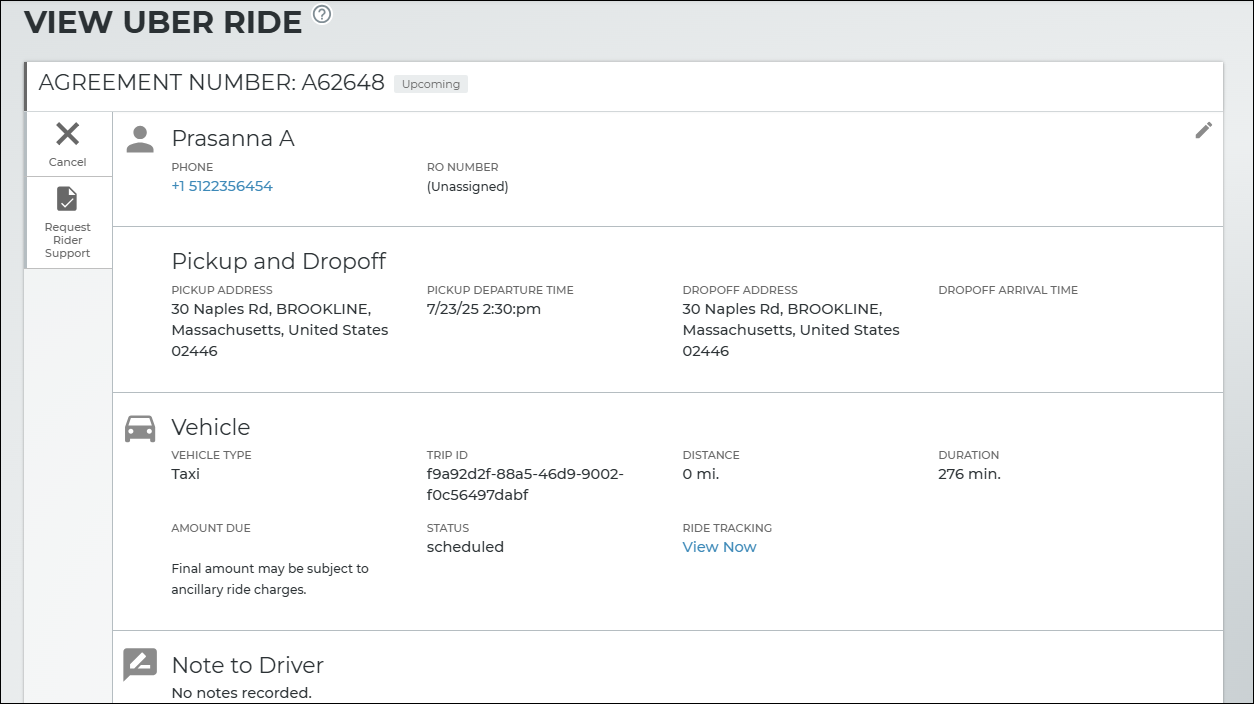
- On the Uber Hub, search for the trip and click the record to view it.
- To edit rider information, click the Edit icon (
 ).
).
Hover to view the full-sized image.
Cancel an Uber Ride
You can cancel an Uber ride at any time, but a cancellation fee may be charged if the ride is cancelled after a driver is already matched.
- On the Uber Hub, search for the trip and click the record to view it.
- Click Cancel on the side panel.
- A message is displayed: "A cancellation fee may be charged if the ride is cancelled after driver is matched."
- Click to continue cancelling the ride, or or close the dialog to go back.
Explore the Uber Hub
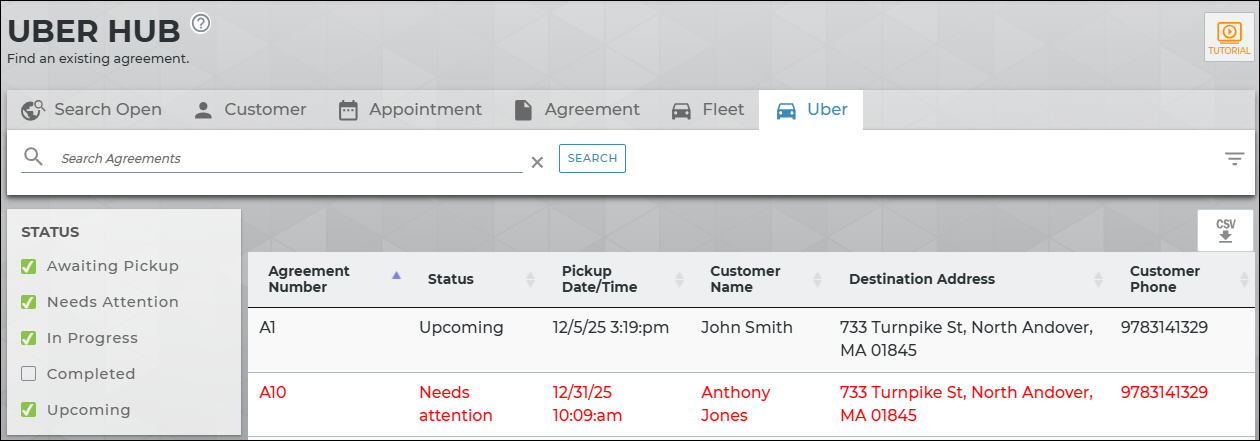
The Uber tab on your 'Home' screen is your place to view all Uber trips, including relevant information, such as Agreement Number associated with the trip and trip status.
Hover to view the full-sized image.
Uber Ride Statuses
The following is a list of Uber Ride statuses, which you can find as search filter options on the left panel of the Uber Hub:
- Awaiting Pickup: The Uber driver is assigned to the trip and on the way to the pickup location.
- In Progress: The ride is currently in progress, with the customer on the way to the dropoff location.
- Upcoming: This ride is scheduled to be pickup up today or in the future.
- Needs Attention: This ride requires your attention because it was cancelled by a driver, customer, or by Uber (e.g., due to a timeout); displayed in red text. Only contains Uber rides marked Needs Attention today and yesterday (within 24 hours of the ride's Checkout Date/Time); agreements older than one day will automatically be filtered out.
- Completed: This ride is completed.
Uber Ride Searches
Search for an Uber trip
- On the Uber tab, type search criteria, such as the customer's name or Agreement Number.
- (Optional.) Use the Status search filters to narrow results.
- Press Enter or click .
Export search results to a CSV
You can export search results on the Uber Hub to a .CSV file, if needed.
- On the Uber Hub, enter search criteria and/or use the Status filters on the left to narrow your results.
- Click the CSV button (
 ) and open the downloaded AgreementExport. file. Exported results contain the same columns as displayed in the application.
Reporting Columns in CSV Export
View Uber Rides
View / Edit an Uber Ride
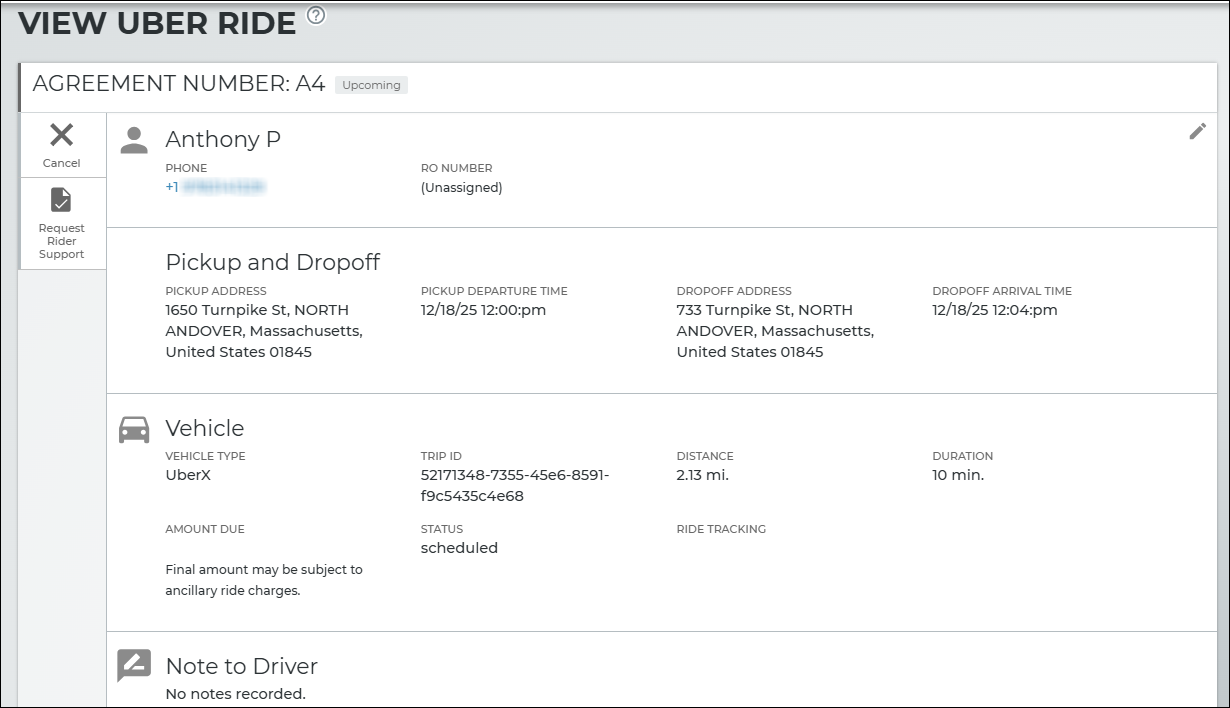
- On the Uber tab, search for the Uber ride and select the record.
- On the View Uber Ride screen, you can do the following:
- Review customer information (name and RO Number), pickup and dropoff, vehicle, and any notes to the driver
- Edit () is customer information.
- Cancel the Uber Ride via the Cancel button on the left panel.
- Request rider support, if support hasn't already been requested, via the Request Rider Support button on the left panel. See "Request Rider Support".
Hover to view the full-sized image.
Cancel an Uber Ride
- On the Uber tab, search for the Uber ride and select the record.
- Click Cancel on the side panel.
Track an Uber Ride
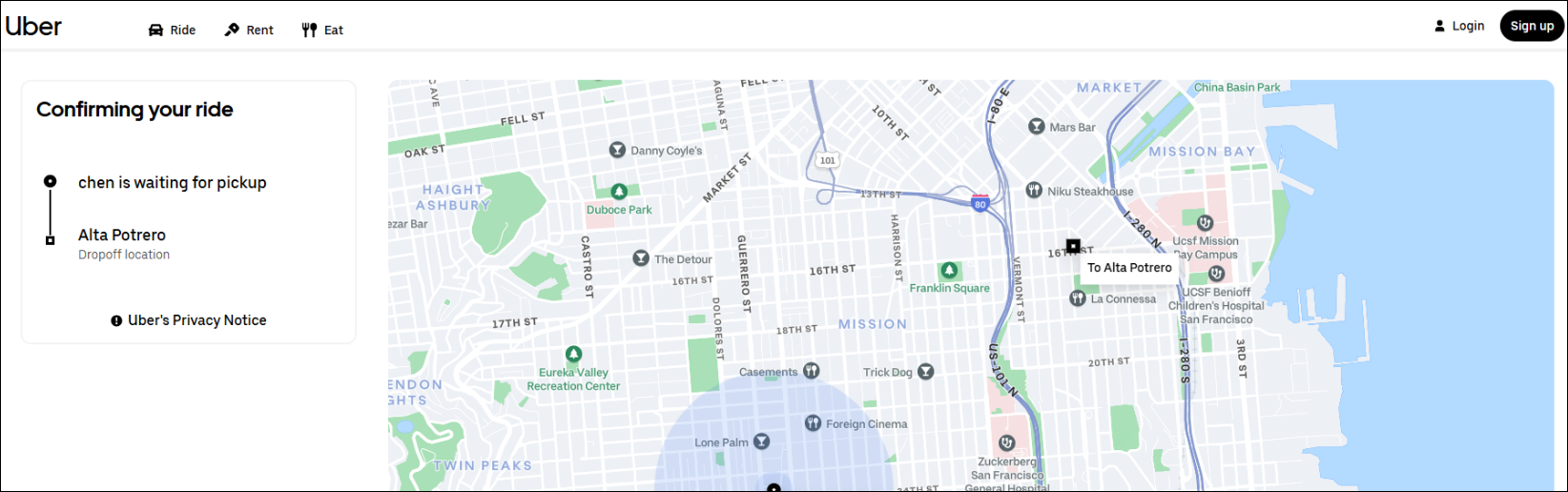
Tracking is available for Uber rides that are Upcoming, In Progress, and Awaiting Pickup.
- On the Uber tab, search for the Uber ride and select the record.
- Click the link under Ride Tracking.
Hover to view the full-sized image.
Request Rider Support
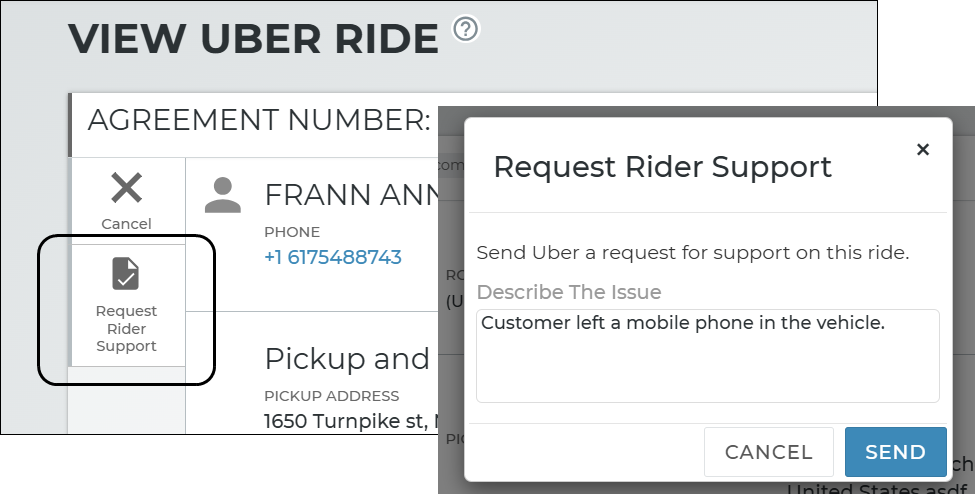
If your rider has an issue (e.g., left their mobile phone in their Uber), you can initiate support with Uber for Business on their behalf.
Request rider support
Note: You can only send one support request for a given ride.
- On the Uber Hub, search for the trip that requires support and click the record to view it.
- Click Request Rider Support on the side panel.
- Describe the issue (e.g., "Customer left mobile phone in the vehicle") and click .
- An email is sent to Uber Support, with your location's Support Email (listed in your Uber Ride Settings management setting) CC'd, so you can stay informed about the issue.
Hover to view the full-sized image.
Additionally, a message is displayed under that a request for rider support was sent, with the date and note.
 Messages
Hover to view the full-sized image.
Reporting Options
- Uber Ride Report. Stay on top of your location's Uber Ride trips over a given time period.
Frequently Asked Questions (FAQs)
I booked a scheduled trip on a pickup date and time. Why isn't the driver here at the pickup time?
When you schedule a ride for a specific time, such as 10:00AM, Uber allows a 10-minute pickup window grace period. For a 10:00AM booking, the driver may arrive anytime between 10:00 and 10:10AM.
If the driver is running late and will not make this window, Uber may automatically rematch with another driver.
What's the difference between a "scheduled" ride and a "flexible" ride?
A Scheduled ride is pickup at your selected Pickup Date and Time. Please allow for a 10-minute window for pickup.
A Flexible ride is pickup at any time on your selected Pickup Date. The customer will receive a text message from Uber to select a time. Flexible rides expire the next morning at 6:00AM.
My customer has an issue and I need Uber support. What do I do?
If your rider has an issue (e.g., left their mobile phone in their Uber), you can initiate support with Uber for Business on their behalf using the Request Rider Support button on the side panel of the trip record. See "Request Rider Support".
© 2026 TSD Rental, LLC